Supported Markets & Currencies
Supported Markets
Sweden (SE)
Norway (NO)
United Kingdom (UK)
Spain (ES)
Supported Currencies
SEK
NOK
GBP
DKK
EUR
Supported Languages
Swedish
Norwegian
English
Additional markets and currencies will be supported soon.
1. Agreements & Onboarding
To activate Two B2B invoicing, you need agreements with both Mondido and Two.
To begin onboarding, contact:
support@mondido.com
Once both agreements are signed, we can proceed with the integration, while you wait you can complete the set up for the Mondido account and integrate to Shopify.
2. Mondido Account Setup
In Payment Templates:
Add a link to your Terms & Conditions
Enable the “T&C” checkbox
Add your own logo to customize the checkout experience
3. Shopify
- Install the Mondido Payments app in Shopify and integrate to your Mondido account: How to Integrate Mondido Payments on Shopify
- Ensure the Two payment method/icon is active and visible at checkout How to Adjust Shopify Icons for Mondido Checkout
- Enable Mondido Payments in Shopify
- Ensure the Two payment method/icon is active and visible at checkout How to Adjust Shopify Icons for Mondido Checkout
- Install Checkout Manager by Mondido
- Rename the payment method (for example: “Pay later with Two”)
- Enable checkbox under “Advanced settings” (Mandatory).
5. Order Capture (Required)
To complete the payment flow, every order must be captured.
Choose Auto-Capture in Shopify or Manual capture in Shopify
Enable under Settings → Payments in Shopify.
- ⚠ Important: If you enable auto-capture, you must inform Mondido so we can adjust your setup.
You can capture via Two’s portal or in Mondido Admin, but this is generally not recommended, as captures may not sync correctly back to each system (Shopify or Mondido). Please use Shopify or ask us for help in specific cases.
You will also receive access to Two’s customer portal to manage transactions: https://portal.two.inc/auth/merchant/login
6. Testing & Go-Live
You cannot use your own company to test Two B2B invoicing.
Two performs real credit checks and company validations in the background. A company cannot place a credit purchase with its own organization.
Testing Options
Option 1: Live Production Test
If possible, ask a friend who owns a registered company to place a real order in your store.
Steps:
Place an order using the Two payment method.
Capture the order in Shopify (if manual capture is enabled).
Cancel or refund the order in Shopify to verify the full flow.
Share the Order ID with Two and clearly notify them that this is a production test purchase.
This ensures:
Credit check flow works correctly
Order capture functions properly
Refund/cancellation sync behaves as expected
Option 2: Sandbox Testing (Using Test Keys)
If you have received sandbox keys from Two, you can safely test your integration in a test environment.
Test companies and documentation are available in the Developer Guides | Two Documentation:
https://docs.two.inc/docs/guides/
Sandbox testing allows you to:
Validate integration setup
Test API behavior
Simulate purchase flows without real credit checks
If Sandbox keys were not part of the initial set up - please ask Mondido to add the Sandbox keys to your account with us
Mondido Payment Form
You can use Mondidos Payment form to test only the checkout:
https://admin.mondido.com/en/payment-form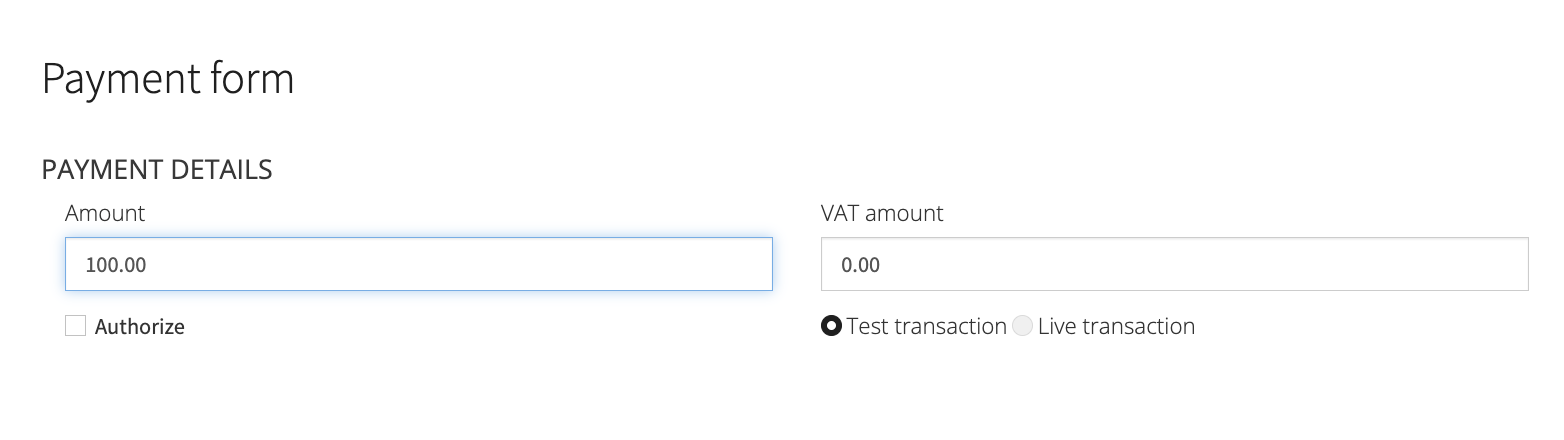

Tip
We recommend asking Mondido Support to monitor your first live orders to ensure everything processes correctly.
Please contact support@mondido.com if you need assistance with:
Transactions
Adjusting payment terms in checkout window
Activating auto-capture in Shopify: Mondido Support needs to configure this.
Base Currency on Shopify: If other than SEK Currency Conversion must be added
Setting up multiple Shopify stores across markets
Verifying your setup before go-live
Bundling these requests ensures we can configure your setup correctly and avoid delays.
If you need assistans with settlements and payouts - please contact Two: support@two.inc
You’re Ready
Once verified, you’re ready to offer Two B2B invoicing in your Shopify checkout — including automated credit checks and upfront payments.
Happy selling!
If you have any questions, feel free to contact us at support@mondido.com or through the Mondido portal by clicking “Contact us”. We’re always happy to help.
Mondido Support
Was this article helpful?
That’s Great!
Thank you for your feedback
Sorry! We couldn't be helpful
Thank you for your feedback
Feedback sent
We appreciate your effort and will try to fix the article
